POSE × OUTFIT × AI
How to use pose references for AI images
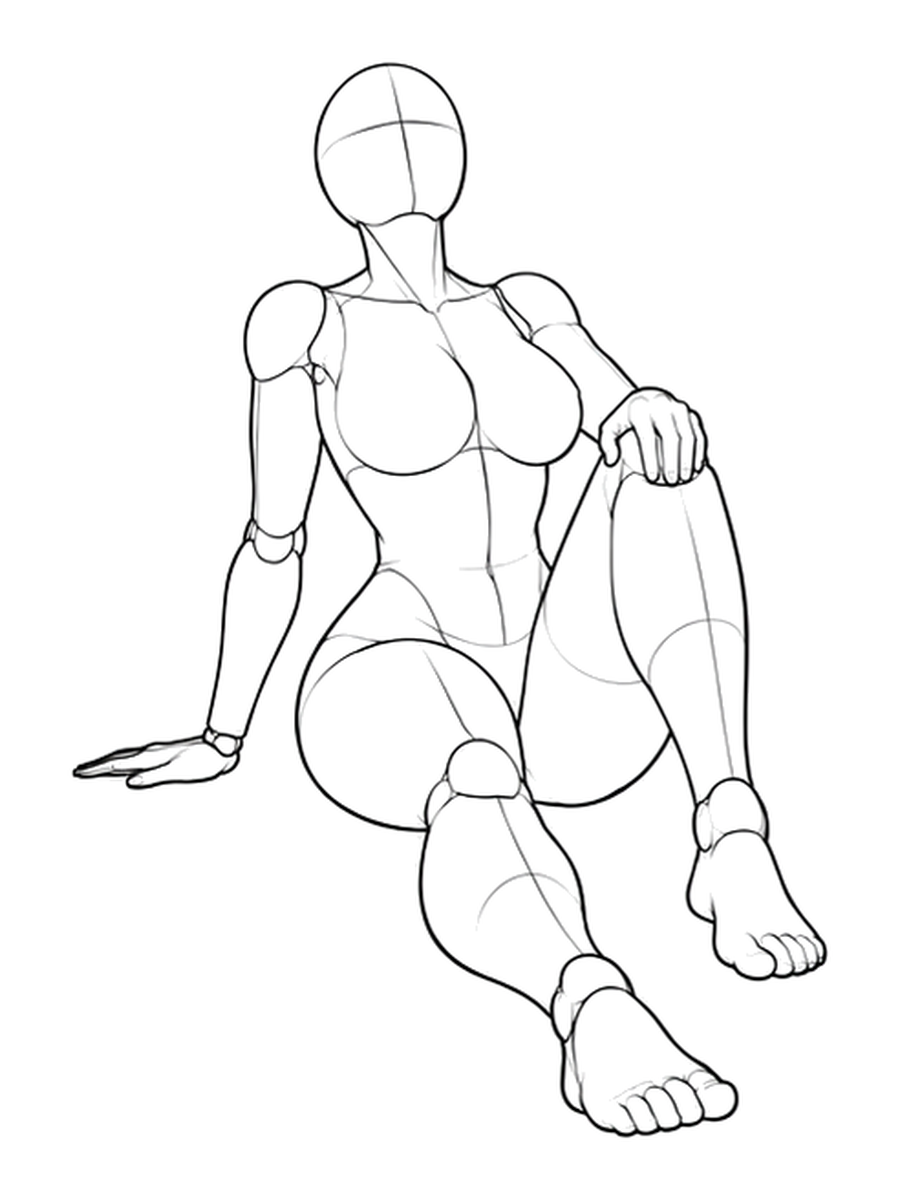
A pose reference shows a body position or gesture you want to explore. It guides image generation, but it does not guarantee an exact copy.
Open the studioREFERENCE / 01–02
Example references
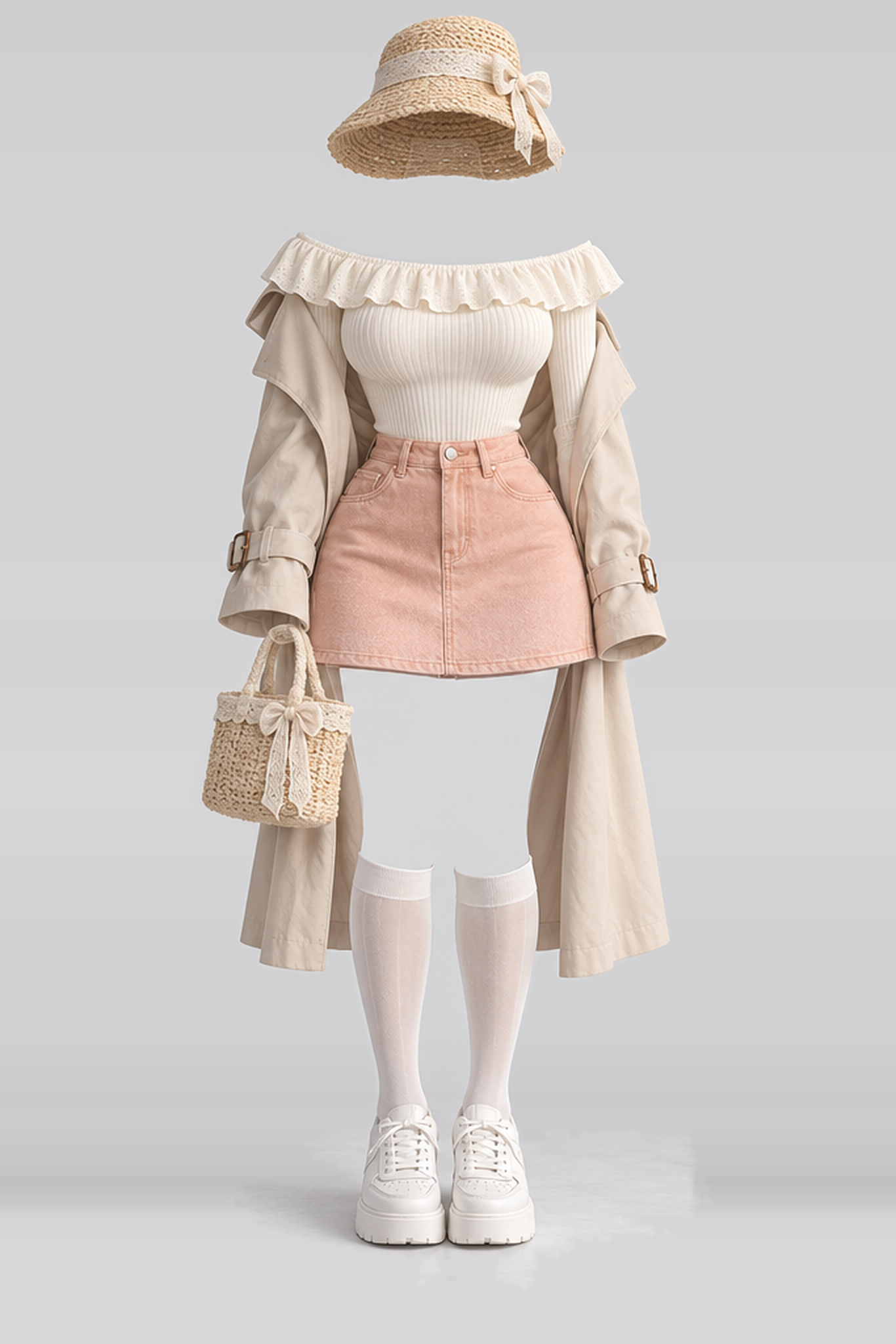
Choose pose and outfit references visually. These images show examples of each.
01 / HOW IT WORKS
How it works
- Sign in with a Google account with a verified email before uploading and generating.
- Choose one clear subject image you have the right and permission to use.
- Select an available single-person pose and a viewing angle that suits your idea.
- Choose an outfit from the library and generate one image.
- Review the subject, pose, hands and outfit at full size before downloading.
1. Start with a suitable subject image
Consider the framing you need. A full-body pose needs more information about the body than a close portrait. Use an image you have permission to transform and make sure your intended use is allowed for all references involved.
2. Choose a pose and viewing angle
Look at the body position, weight, hands and camera angle. PoseWeave offers available single-person pose references and viewing angles. The model can interpret or change details in the generated image.
3. Select an outfit
Choose an outfit from the available library. Both a pose and an outfit are required in the current workflow; custom pose and outfit uploads are not supported. Colors and accessories can differ from the selected outfit.
4. Generate and inspect
Generate one image and compare the subject’s appearance, hands, viewpoint and clothing details with the inputs. If something is important to your use, check it before downloading or sharing. Trying a different reference or angle may produce a different result, but another attempt is not guaranteed to fix a detail.
Can a character stay consistent across poses?
Using the same subject image gives each attempt a common reference, but identity and details can still change. Compare results individually rather than assuming every image will match.
What a small test can and cannot tell you
In six isolated image generations reviewed in October 2026, several main poses and garment elements were recognizable. A hat and a bag were missing in separate results; an overhead view was difficult to confirm, and an oblique view was not precisely reproduced.
These were manual observations of a small test, not a benchmark or a guarantee for the current production service. Check each output individually. Using the same subject image across attempts can provide a common reference, but identity and details can still vary.
Choose full-body or upper-body framing
For a full-body idea, check that the reference shows the legs and that the selected angle makes the intended body direction clear. For a closer framing, pay particular attention to the face, shoulders, hands and sleeves. The finished image can still differ from the reference.
If a hand, shoe or accessory is important, compare it at full size after generating. A new attempt uses another generation and may not correct the same detail.
Sign-in and generation cost
Generating requires a Google account with a verified email. Each successfully delivered image currently costs 30 credits; failed generations release reserved credits. Check the pricing page for packages and applicable taxes.
Common questions
Can I upload my own pose or outfit reference?
Not in the current version. You select available pose and outfit references from the libraries.
Do pose references control the background?
A pose reference guides the intended position, but the final background and framing can still change.
Does PoseWeave offer a depth-map or ControlNet workflow?
The current interface does not offer either as a selectable feature.
View pricing and credit packages
Open the studio