POSE × OUTFIT × AI
Explore new outfits with AI
Choose an outfit visually and combine it with a pose for one subject. PoseWeave uses your subject image and selections from its libraries to generate a new image.
Open the studioREFERENCE / 01–02
Example references
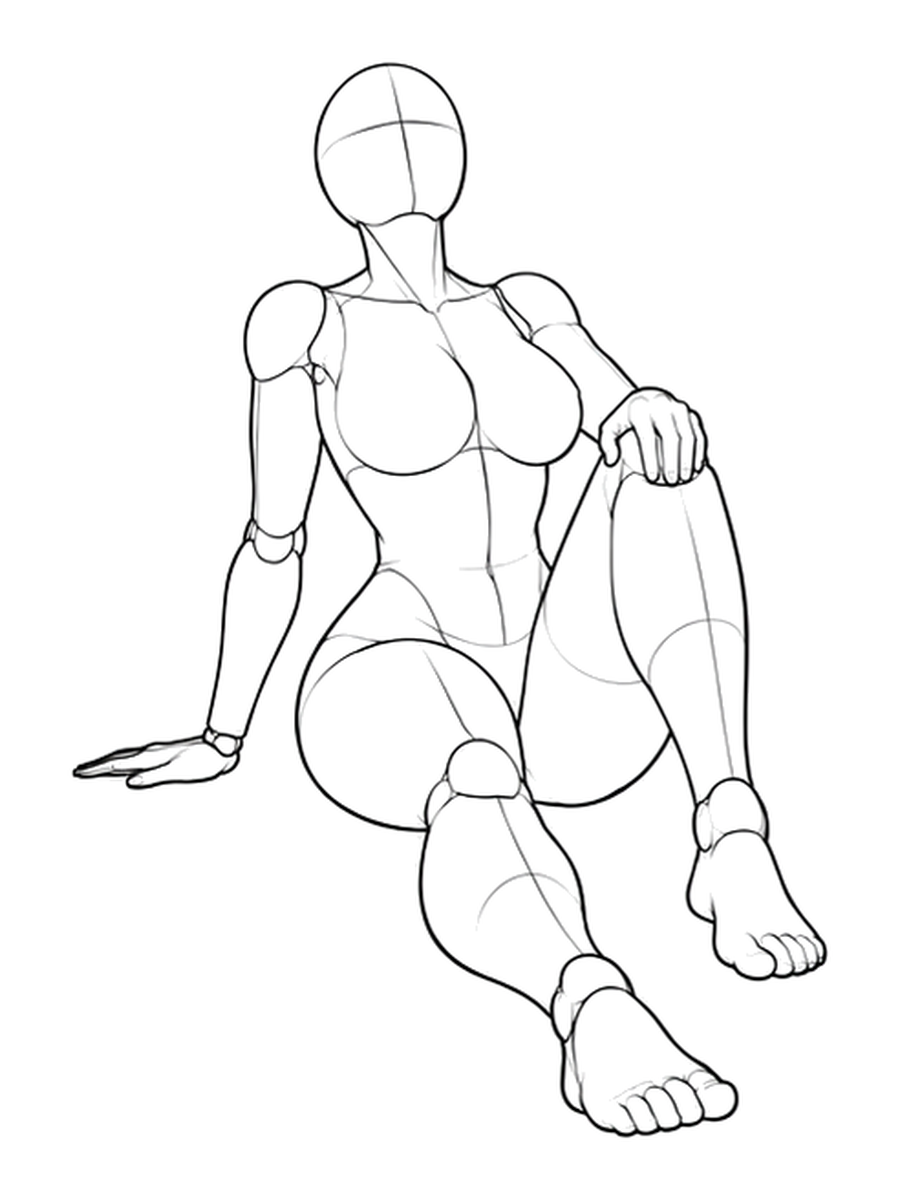
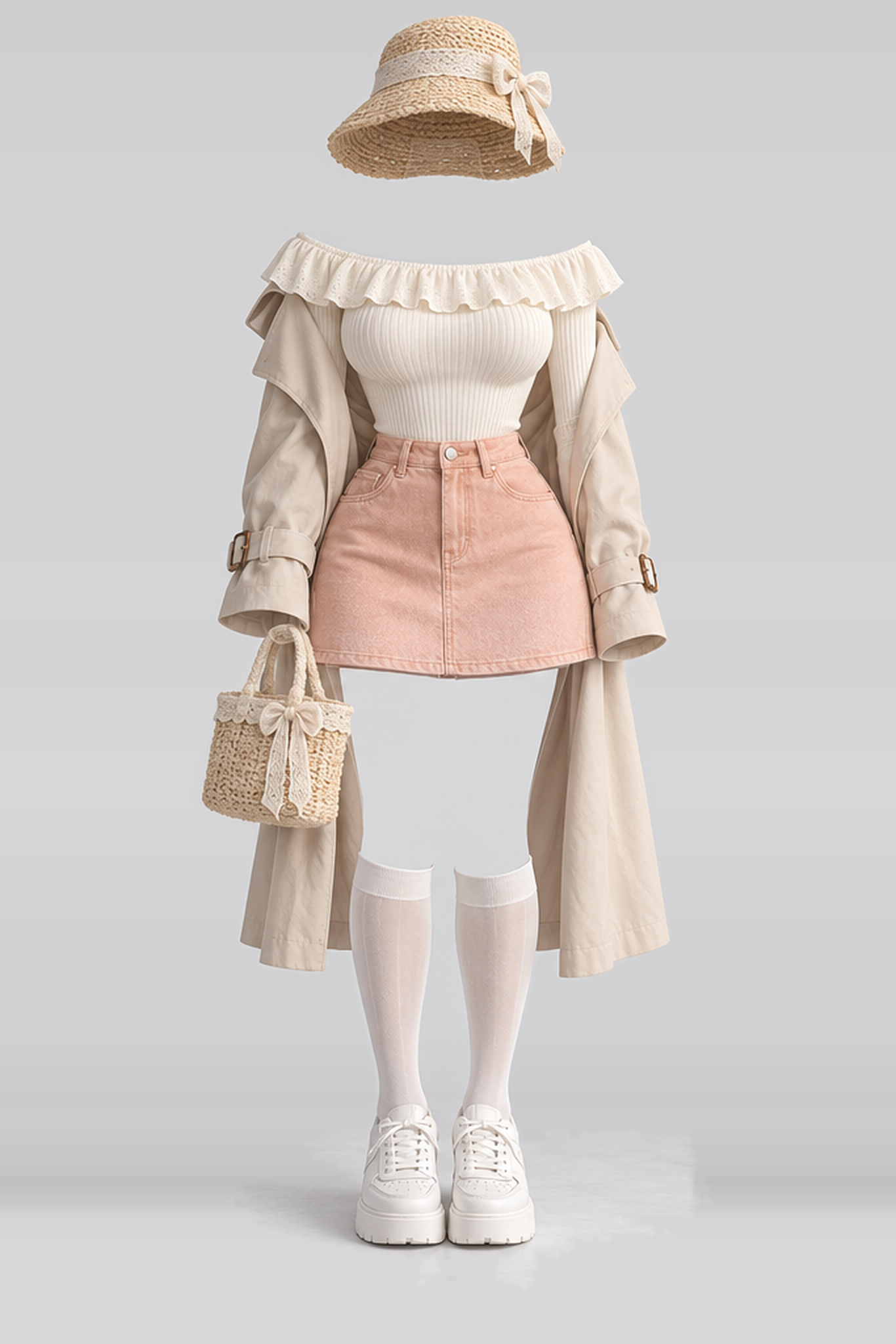
Choose pose and outfit references visually. These images show examples of each.
01 / HOW IT WORKS
How it works
- Sign in with a Google account with a verified email before uploading and generating.
- Choose one subject image you have the right and permission to use.
- Select a single-person pose and an available angle from the pose library.
- Browse the outfit library and choose a look.
- Generate one image, then inspect the result before downloading.
Try a new look
Browse the available outfit references and select one that suits your idea. A pose and viewing angle are also required for the same generation.
The image is a creative preview. Colors, fabric, accessories and other garment details can differ from the reference.
Compare the outfit details that matter
Before generating, identify the details that matter to your idea: silhouette, layers, color and accessories. A cropped pose may leave shoes or bags outside the frame; compare the selected pose and outfit together.
Review clothing details
Inspect the generated garment and subject at full size. Consider whether the shape, colors and accessories suit your intended use.
A generated image does not establish garment sizing, construction or how a real item will fit.
Test observation: clothing and accessories
In one isolated October 2026 test using a winter outfit reference, the generated image showed the main top and coat, while the hat was missing. The overhead viewpoint was also difficult to confirm precisely.
This was one manually reviewed output, not a guarantee for the current service. Check accessories, garment edges and coverage at full size; do not assume every item in a reference will appear.
Match the pose to the clothing details
Choose a full-body pose when shoes or the length of an outfit matter. An upper-body pose can make the neckline, sleeves and accessories easier to inspect, but may crop details below the waist. Neither choice guarantees that every reference detail will appear.
Review the available viewing angle alongside the outfit: a front view may reveal different details than a side view. Compare the generated image against the selected references before sharing.
Before you generate
A Google account with a verified email is required. Each successfully delivered image currently costs 30 credits; a failed generation releases reserved credits. Check the pricing page for current packages and applicable taxes.
Common questions
Can I upload a picture of my own clothes?
Not currently. You choose an outfit from the available library.
Will the original pose stay the same?
Not necessarily. The workflow also requires a pose selection, and the generated position may differ from the original and the reference.
Is this a size or fit recommendation?
No. The result is a creative image and cannot confirm how a garment will fit.
View pricing and credit packages
Open the studio